Creating hotspots: 2–3 clicks instead of seven
Creating navigation hotspots is the thing you do most often when building a virtual tour. Until now, every hotspot took seven steps: choose the tool, click the spot, wait for a dialog with a dozen fields, choose the type, find the target panorama, scroll down and click Save. We have cut that down to two or three clicks.
How it works now
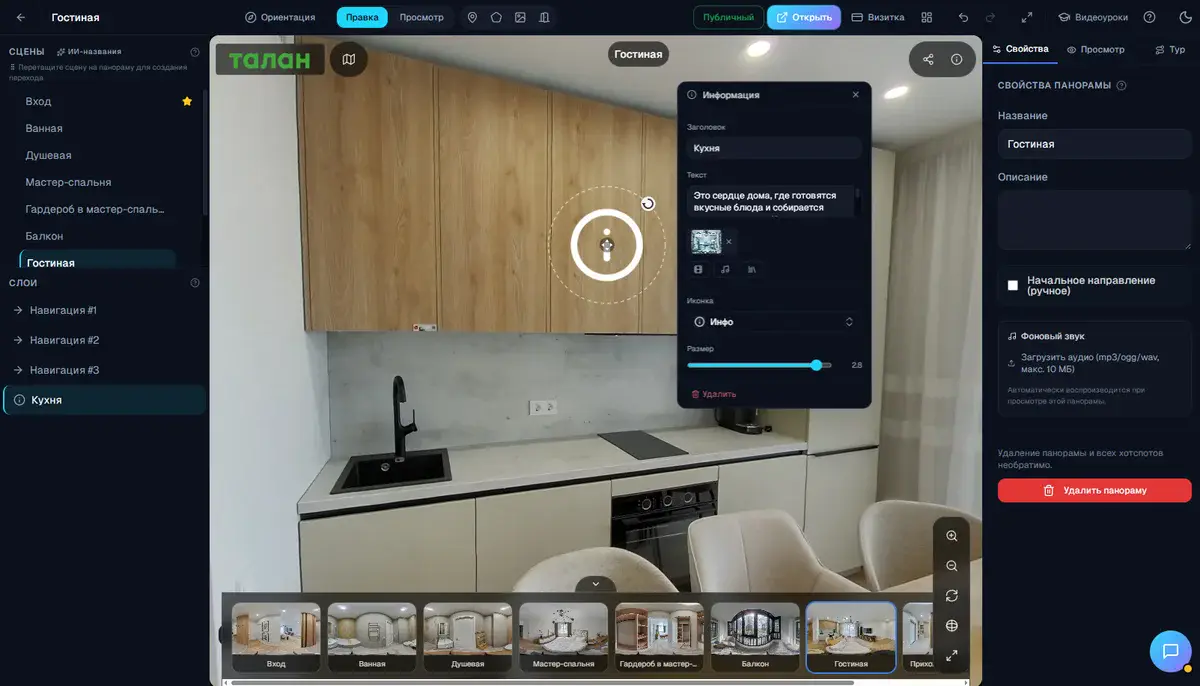
Double-click the spot you want in the panorama. A compact menu with three options appears right on screen, next to the cursor:
- Navigation: go to another panorama
- Information: a text tooltip (title and description)
- Link: open an external URL
Pick the type and the relevant fields appear immediately. For navigation, that is a grid of thumbnails of all panoramas in the project: click the one you want and the hotspot is created. No dialogs, no scrolling.
Choosing the target panorama, made easy
Panorama thumbnails are shown in a clear grid. If the project has more than seven scenes, a search field appears automatically: type a couple of characters and find the panorama instantly.
Panoramas that a hotspot in the current scene already points to are marked "Already linked". This is not a restriction (you can create several hotspots to the same panorama), just a visual reminder of which connections are already in place.
Advanced settings, when you need them
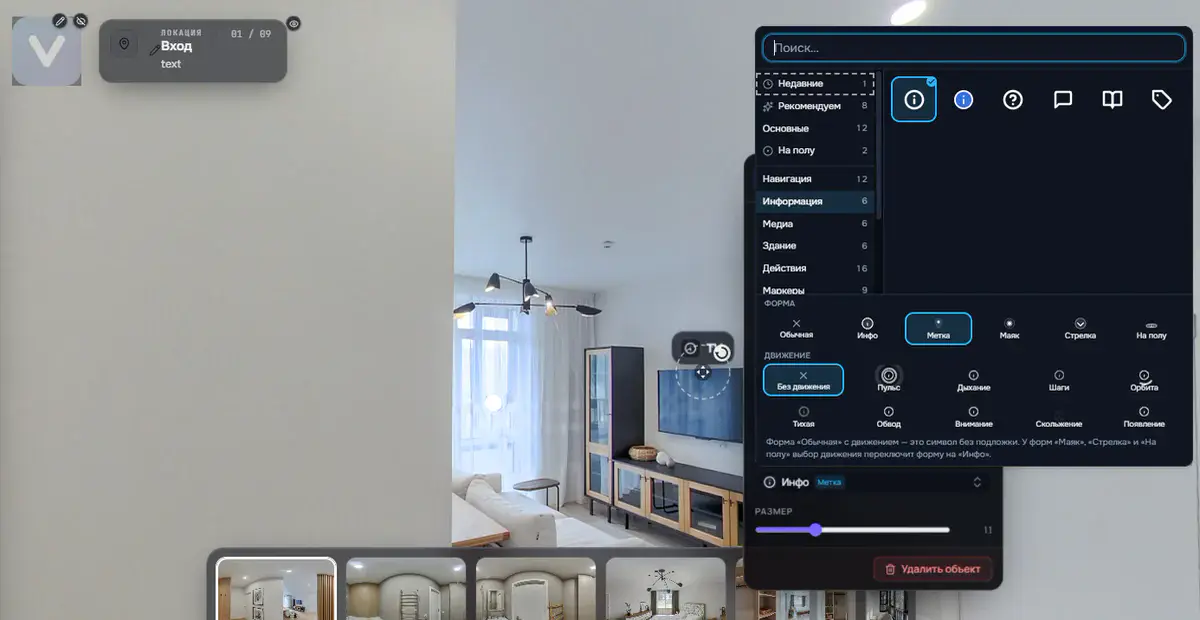
Sometimes you need more control: choose an icon, set a transformation, adjust additional parameters. For that, the quick menu has an "Advanced settings" link that opens the familiar full dialog with all fields. Simple actions are fast; complex ones are still available.
Delete with one key
Select a hotspot and press Delete or Backspace. A confirmation appears, and the hotspot is gone. No more hunting for the delete button in the sidebar or a context menu.
Not just with the mouse
All main hotspot actions are now available from the keyboard:
- Double-click: quick hotspot creation
- H: activate the hotspot tool (for precise placement)
- Delete / Backspace: delete the selected hotspot
- Escape: close the creation menu
- Ctrl+Z: undo the last action
How much time it saves
Navigation hotspots are by far the most common type, more than 80% of all hotspots in tours. Each used to take 15–20 seconds; now it takes 3–4. For a tour with 20 panoramas and 40 navigation hotspots, that is the difference between 10 minutes of routine and a couple of minutes of work.
Try it
The update is already live in your account. Open any project, double-click a panorama and see the new workflow for yourself. If you don't have an account yet, sign up and get started right away.
Try it with your own project
Create a free account and build your first tour — paid plans are set up on request.
Create a free account →