Icon library for tour hotspots: 75 icons, with shape and motion set separately
Hotspots are what visitors click in a tour: transitions between rooms, finish descriptions, links, photos and videos. Until now you could style them with a handful of standard icons, and in a large property they quickly started to look alike. The editor now has its own icon library and a new way to set up how a hotspot looks. Everything is already live, with nothing to switch on.
75 icons in eight categories
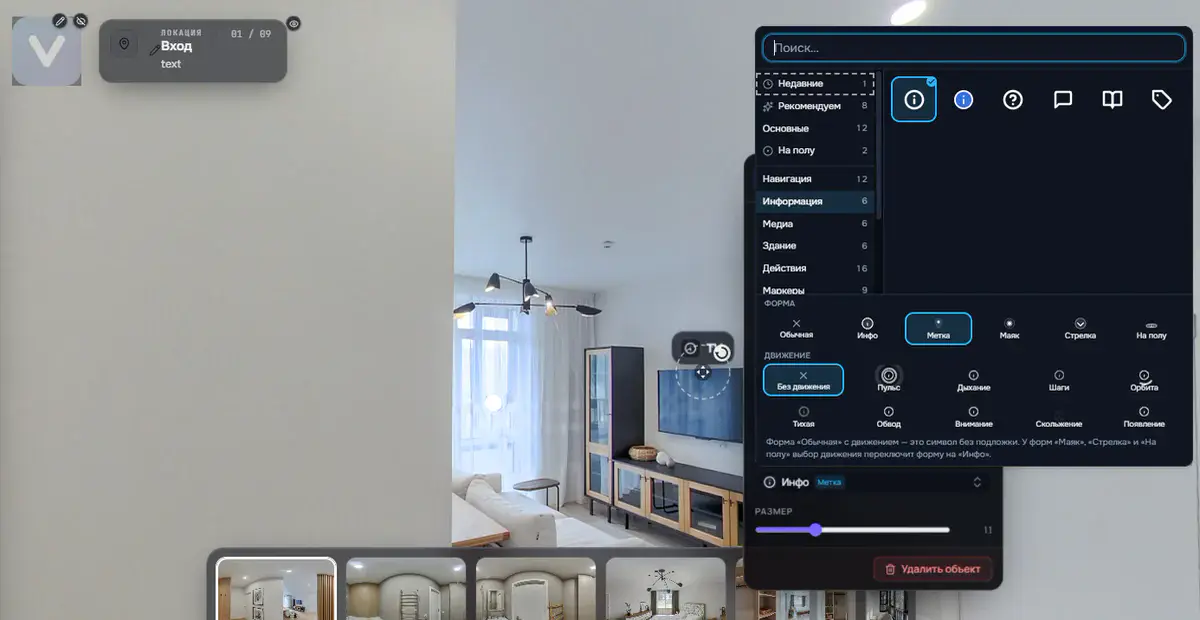
The library is organized by topic: Navigation, Information, Media, Actions, Real estate, Building, Commerce and Markers. Doors and stairs, windows and balcony, floor area and ceiling height, shopping cart and price, photo, video and sound: the things you need most often on a property.
All icons were drawn specifically for VPano, by one hand: the same line weight, rounded ends, no filled badges. We derived the style from our own logo mark. The practical point is simple: the icons in one tour look like a set, not a random collection from different places. You notice it immediately in listing screenshots and presentations.
Search that knows what you mean
You can search in your own words rather than by the official name: "exit", "bathroom", "elevator". The right icon turns up even if it is labeled differently in the library. One more small thing that saves nerves: if you forgot to switch between a Cyrillic and a Latin keyboard layout, the search still finds what you meant.
The editor remembers your eight most recently used icons and the category you had open last time. When a tour has thirty similar hotspots, that saves a trip through the categories every time.
Shape and motion are two different questions
This is the main change. Previously, a hotspot's shape and its animation were tied together: as soon as you wanted motion, the icon automatically got a semi-transparent backdrop, and there was no way to remove it.
Now you choose three things independently:
- Icon: from the library or your own.
- Shape: six options: Plain, Info, Beacon, Arrow, On floor and Tag.
- Motion: nine options, from a calm Breathe to Pulse, Orbit and Outline.
This makes possible the most understated option, which didn't exist before: an icon that moves with no backdrop at all. For high-end interiors and museum projects, that is often exactly right: the hotspot gets attention, without extra graphics over the image.
The Tag shape, the "pill" with a label, now also shows the icon you selected instead of the same standard marker every time.
Hotspots on the floor
The separate On floor shape is for hotspots that lie flat on the floor, typically placed at transitions from room to room. On hover, the cursor draws a circle on the floor, so visitors can see in advance where they will go next. Navigation reads like a route rather than a set of icons floating in the air.
Small things you'll notice while working
- The shape and motion selection is pinned to the bottom of the window and always visible, however far you scroll through the icon list.
- Every motion has a live preview right in its button: you see how the hotspot will behave in the tour before you apply it.
Try it now
Open the editor, click any hotspot and choose an icon: everything described here is already in place. A tip from practice: use one icon and one shape for all transitions in a tour, and keep motion only where you really need to guide the visitor somewhere. The tour looks more polished as a result.
Sign in or create an account and try it on your own project.
Try it with your own project
Create a free account and build your first tour — paid plans are set up on request.
Create a free account →