Minimap markers in your tour's colors, plus an automatic way back
The panorama editor has two new updates that authors of large tours have asked for most often. The first is about looks: the tour minimap can now be styled to match your project. The second saves time: when you create a transition between scenes, the editor offers to create the way back for you. Both are already live; there is nothing to switch on.
Minimap marker design
The minimap is the floor plan with capture points that shows visitors where they are and where they can go next. Until now the markers looked the same in every tour: grey circles and a blue circle for the active scene. On a light architectural plan they got lost, and in a tour with brand colors they simply did not fit.
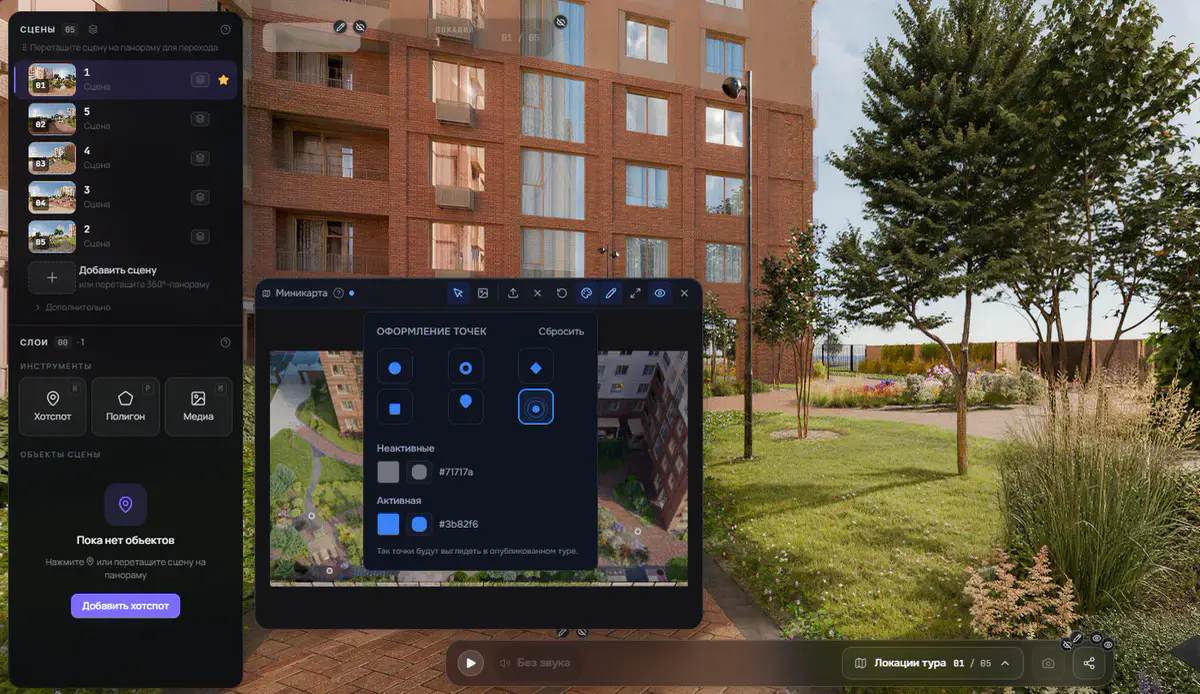
Now the shape and colors of the markers can be set for each tour individually. In edit mode, the minimap header has a new palette button that opens the Marker design panel.
- Six shapes: Dot, Ring, Diamond, Square, Pin and Radar.
- Two colors: one for inactive scenes and one for the scene the visitor is currently in. The two colors are set independently.
- A Reset button restores the default look with one click, so you can experiment without worry.
There is no separate preview window, and none is needed: the minimap below the panel is the preview. Pick a shape and the markers on the plan change immediately, with your real scenes on your real floor plan. What you see in the editor is exactly what visitors see in the published tour.
Why the colors stay visible
Colored markers have a well-known problem: a brand yellow looks great on the dark player background and disappears completely on a white floor plan. That is why the marker outline is chosen automatically based on the brightness of the color you pick. A light color gets a dark outline, a dark color a light one. No extra settings: you choose your brand color, and we take care of legibility on any background.
If you change nothing, the minimap looks as before. The update does not touch tours that are already published.
Which shape to choose
- Ring: when the plan itself matters. The center is transparent, so the layout underneath stays readable.
- Diamond and Square: for busy drawings where circles blend in with furniture and dimension lines.
- Pin: when you need a precise position. The tip sits exactly on the capture point.
- Radar: soft rings around the center that make the current scene stand out in a large tour.
Automatic way back
The second update tackles the most tedious part of building a tour. You place a transition from the living room to the hallway, switch to the hallway and place a transition back to the living room. And again for every pair of scenes. In a 40-panorama tour that adds up to hundreds of identical steps, and one lapse of attention is enough to leave visitors stuck in a room they cannot leave.
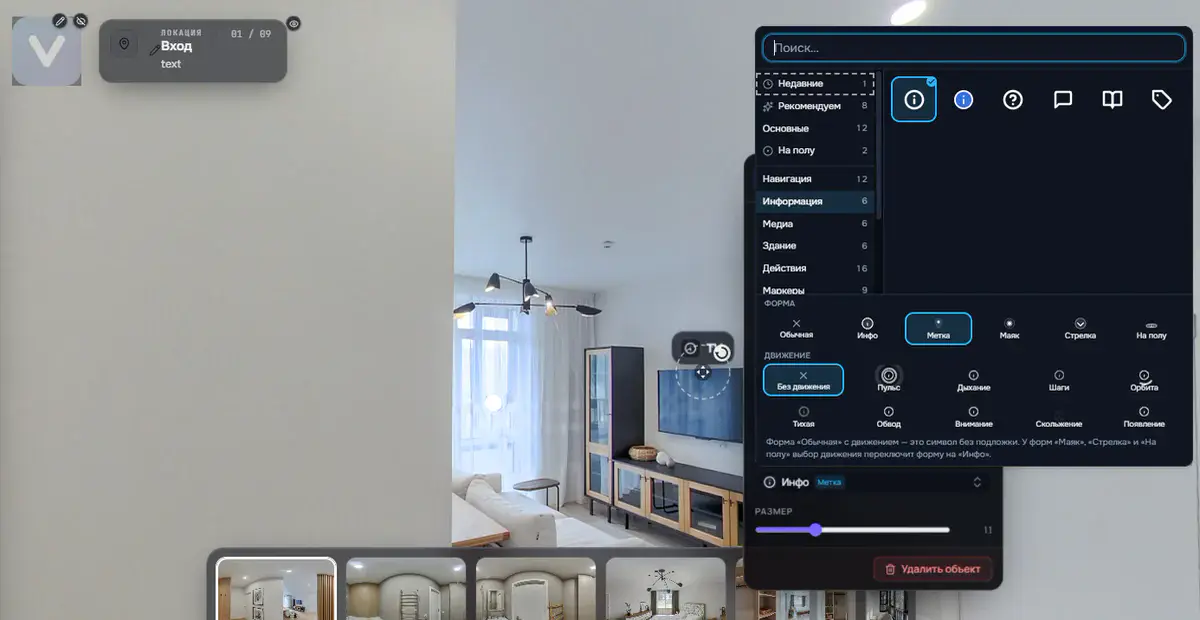
Now, when you create a transition from scene A to scene B, the editor asks: Create a way back? Click Create, and scene B gets a path back to A.
- In the right place, facing the right way. The direction of the way back is taken from your own click, so the marker points to where the visitor came from. No floor plan required: it works just as well in tours without one.
- No duplicates. If the scene already has a way back, the question does not appear and no second marker is created.
- It is a normal transition. You can move it, rename it, give it your own icon or delete it like any other. It can also be undone on its own, without taking the transition you just placed with it.
- You can turn the question off. The dialog has a checkbox, Remember this choice for this tour and stop asking. It is unchecked by default: until you tick it, the editor asks every time. Once ticked, it applies your choice and stops asking in that tour.
Who benefits most
Minimap design is for anyone delivering tours under a client's brand: developers, real estate agencies, hotels, museums. The tour no longer looks like everyone else's, without a line of code and without contacting support.
The automatic way back is for anyone building large properties: apartments with long hallways, showrooms, production sites, exhibitions. It means roughly half the clicks when linking scenes and much less risk of leaving a dead end that visitors can only escape with the browser's back button.
Sign in, open any tour and try it: both updates are already live. No account yet? Create one here.
Try it with your own project
Create a free account and build your first tour — paid plans are set up on request.
Create a free account →