A new 360° player design and animated hotspots
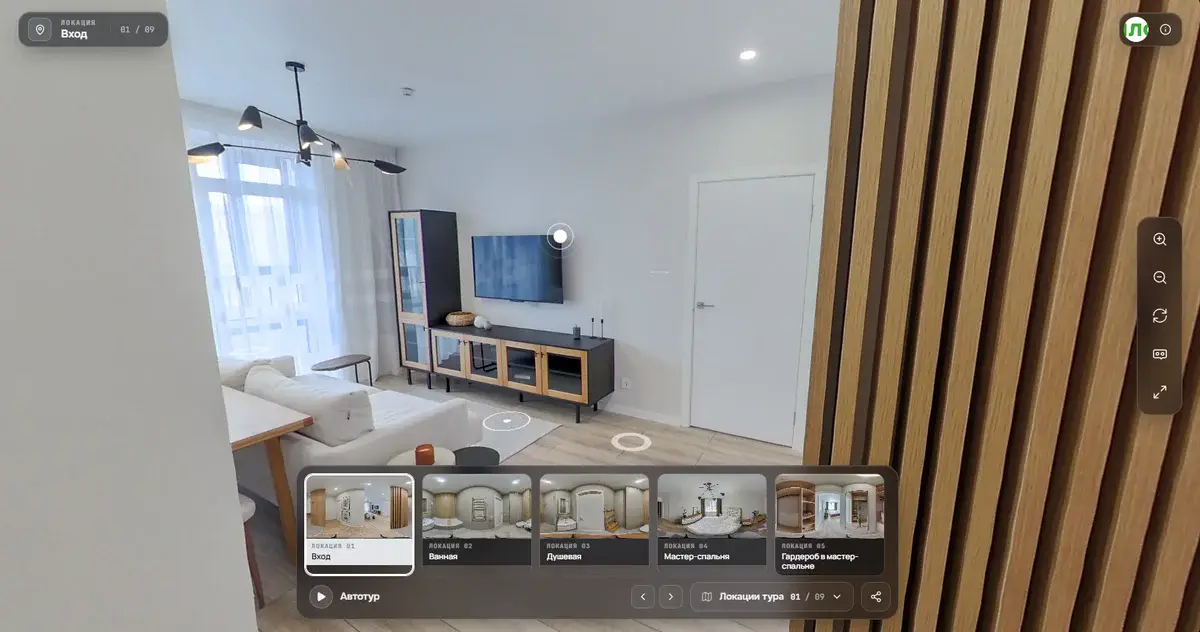
Today we rolled out two big updates: a new look for the panorama player and the second version of the hotspot system. Both are already live in classic 360° tours and in 3D projects; there is nothing to switch on.
A calmer player that works better on phones
The main change: the bottom of the player now has a single glass bar that holds all tour controls. No more buttons scattered across the corners: starting the auto tour, the audio guide, the scene list and the Share button are all together, within easy reach of your thumb.
Previously, a "3 of 12" counter appeared at the side during an automatic tour and nudged the neighboring buttons. Now a thin progress ring is drawn around the Play icon. You can see how much is left, and nothing jumps around. A small thing, but the eye no longer catches on it.
The audio guide has become a compact pill. To change the volume you no longer drag anything sideways: tap once and a vertical slider pops up above the button. On a phone this makes a real difference, because your finger no longer covers the scale.
- Scene names and addresses now use two lines, so long addresses and stop names are no longer cut off.
- The Share button has moved to the right side of the shared bar: one tap and the link is ready.
- Tour controls are easier to use on a phone, with all important buttons in one area at the bottom.
- The player's light and dark themes switch automatically, adapting to the project.
Animated hotspots: five styles and a dedicated portal
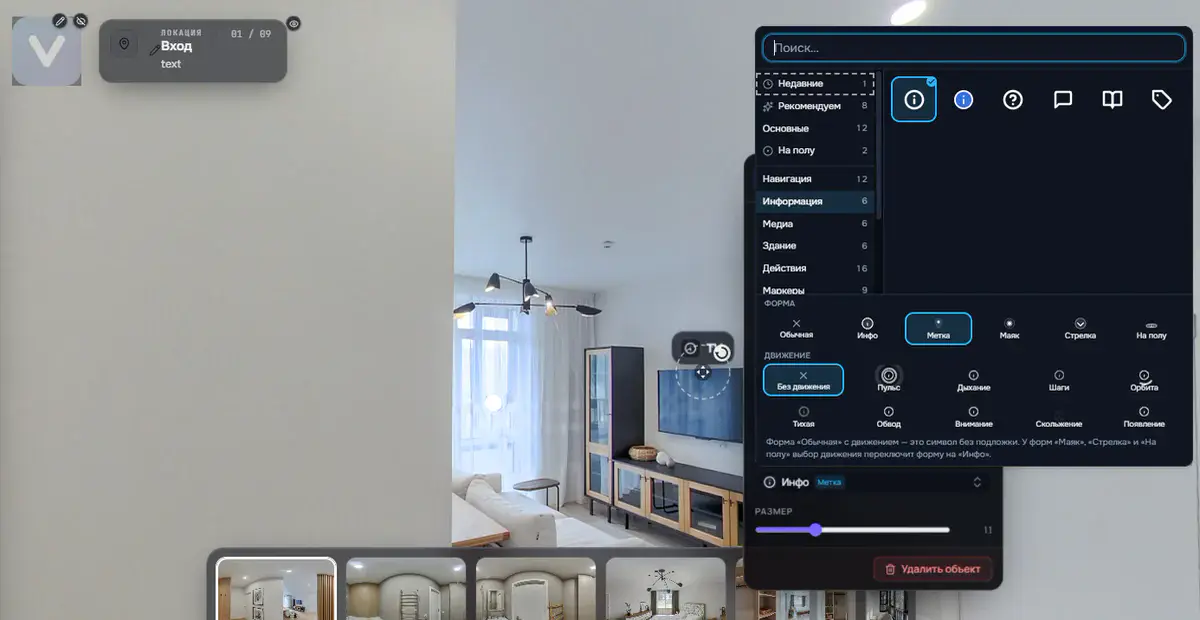
Hotspots no longer have to look alike. When you create a marker, you can choose one of five styles: Beacon, a pulsing glowing dot; Arrow, an animated direction pointer; On floor, a calm flat ring at your feet; Info, a custom icon with a caption; and Tag, an animated text label right in the scene.
In addition there is a dedicated transition hotspot for moving between scenes. It looks like a doorway into the next location and makes switching between panoramas noticeably more cinematic. It works well when you want to emphasize the connection between two spaces: from the street into the lobby, from the hallway into a room, from the apartment into the shared courtyard. It is particularly effective in 3D tours built from architectural renders, where transitions help convey a sense of space.
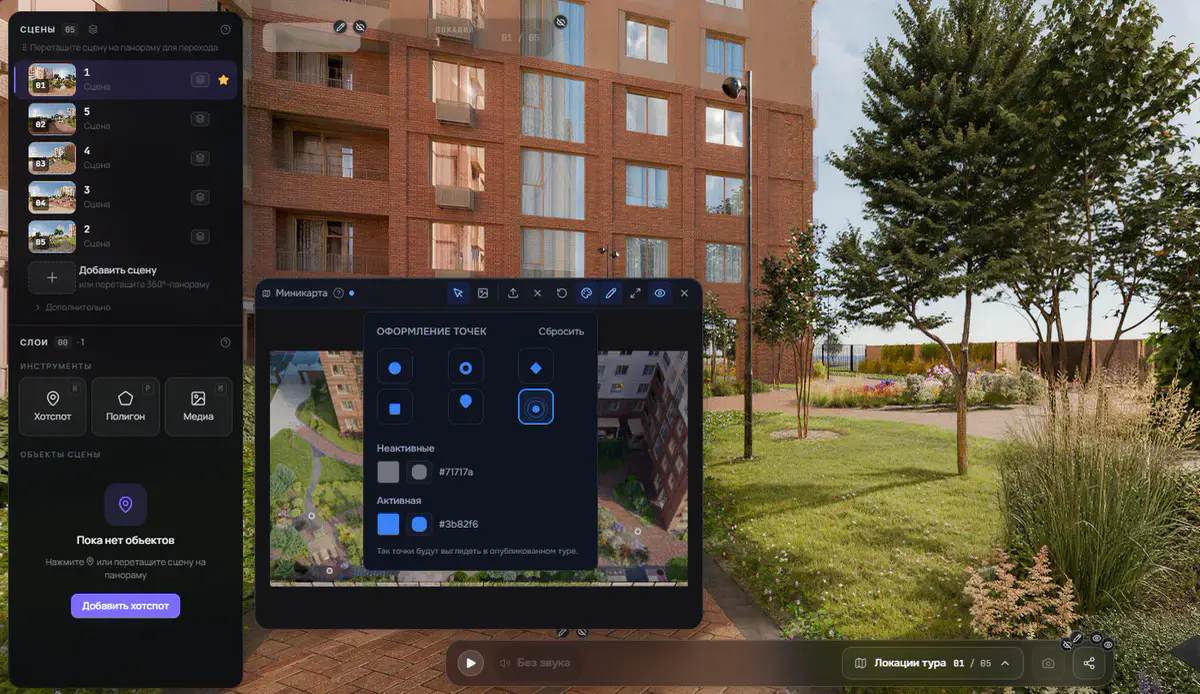
Another important change: each hotspot now has its own color, independent of the player's overall design. You can match a marker's style to the branding of a specific project or make different categories easy to tell apart (for example, information markers in one color and transitions in another), without being tied to the interface theme.
Open the editor, go to the hotspot section and try the new styles on your own tour. It takes a couple of minutes, and your scenes come to life right away. No account yet? Sign up here.
Try it with your own project
Create a free account and build your first tour — paid plans are set up on request.
Create a free account →